A practical guide for “how to add a person to a photo with AI”
The five-minute answer
How to add a person to a photo in three steps
- Choose the people.Add one clear portrait of the missing person and one portrait of everyone joining them.
- Pick the new setting.Choose a birthday, wedding, holiday, studio, or everyday scene that fits the group.
- Generate and check.Create the new composition, then inspect faces, hands, clothing, and background details before sharing.
Need to preserve the exact original background? Use a layer-based photo editor. TogetherLens creates a new group scene instead of pasting someone into the untouched original.
To add a person with TogetherLens, open the app, choose one clear portrait for each of two to five people, and pick a scene. The app creates a new group composition; it does not paste a face over an existing body or alter your original photograph.
If someone missed a birthday, holiday, or trip, begin with a clear portrait of that person and one portrait for each person who should join them. Select a scene that communicates the occasion without pretending the generated result is documentary evidence.
Tell viewers when an image is AI-generated, especially when the context could matter. This keeps a sentimental recreation honest while still giving the group something meaningful to share.
Three scenes that fit this idea
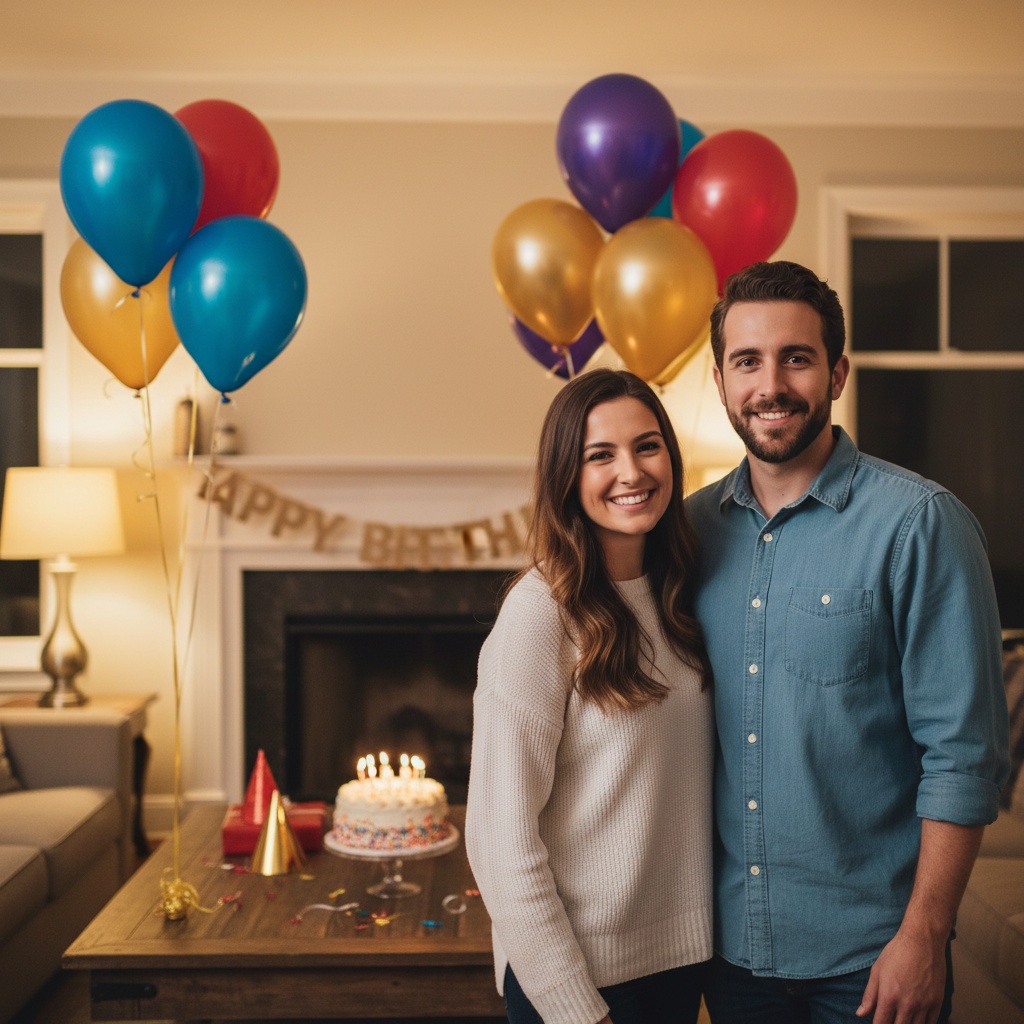
Birthday at home
A cake and warm indoor light quickly explain why the group is together.
Backyard gathering
Casual framing tolerates varied outfits and source-photo lighting.
Simple studio
A neutral background is best when accurate faces matter more than a detailed occasion.
Choose source photos the model can read
TogetherLens creates a new composition from the people you provide. It does not need matching backgrounds, but it does need clear facial information. Start with the original file when possible rather than a screenshot downloaded from a social network or messaging app.
- Use a solo photo of the missing person.
- Match approximate age and hairstyle to the moment you want.
- Prefer similar facial expressions across inputs.
- Keep each face fully visible and ask every living person for permission.
Generate in three deliberate steps
- Add two to five people.Use one clear portrait for each person and review every crop before continuing.
- Choose one or two vibes.Pick a scene that supports the story instead of competing with the faces.
- Inspect the preview.Check eyes, teeth, hands, clothing, jewelry, and meaningful background details. Trial previews are protected with a watermark.
What to avoid
- Claiming the generated scene is an untouched original
- Using a low-resolution social-media thumbnail
- Uploading someone without permission
Generated photos are creative images, not documentary evidence. Disclose that the result is AI-generated when context matters, and never use someone’s face to impersonate, embarrass, or mislead.
Questions about this portrait
How do I add a person to a photo with AI?
Open TogetherLens on iPhone or Android, add one clear portrait for every person, choose a scene, and generate a new group picture. You do not need masks, layers, or manual cutouts.
How do I add a person to a picture on my iPhone?
Install TogetherLens on your iPhone, choose one clear portrait for the missing person and each person joining them, select a scene, then generate and inspect the new group picture.
Can I add a person to a photo online for free?
TogetherLens is an iPhone and Android app, not a browser editor. It is free to install, and eligible new users can try one protected preview before choosing Premium.
Does TogetherLens edit my original event photo?
No. It creates a new group image using the selected people and scene.
Can I add one person to four others?
Yes. The total group can contain up to five people.