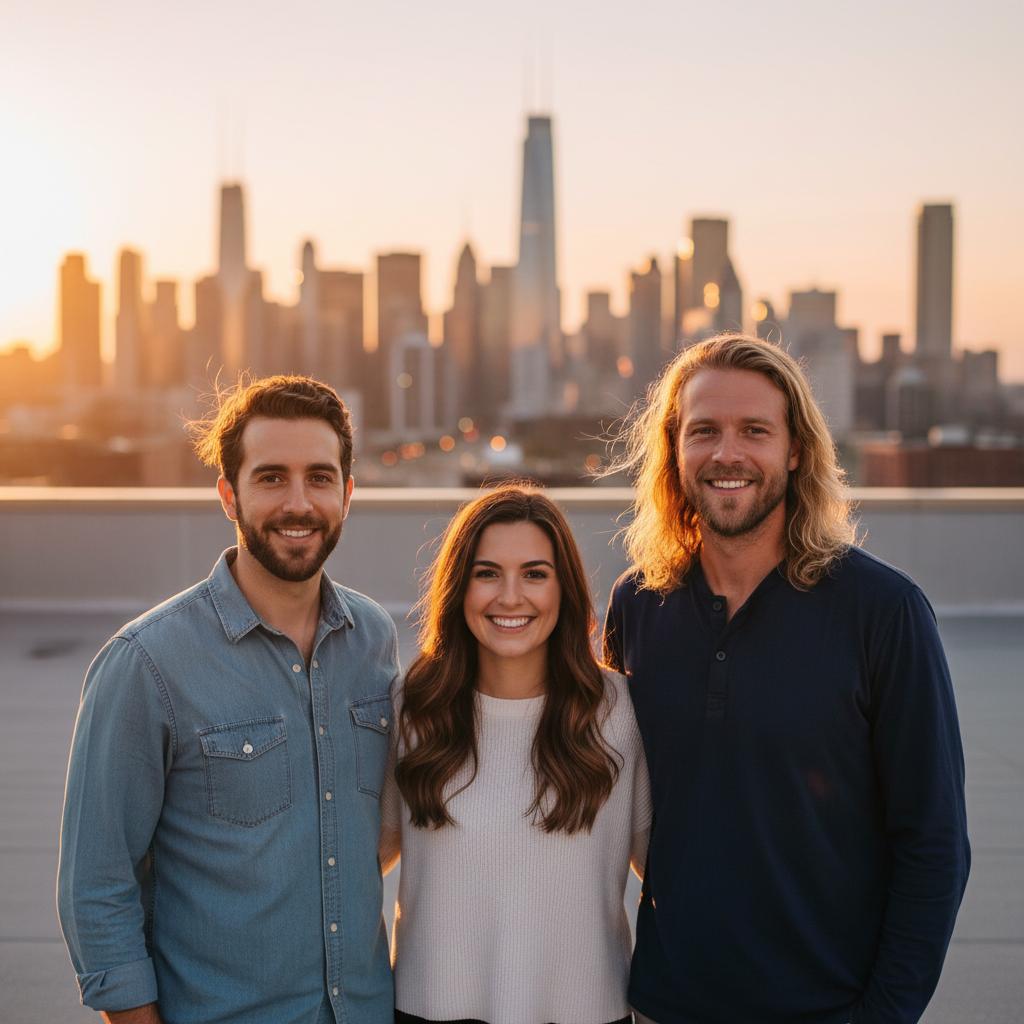
A practical guide for “AI group photo generator from individual photos”
The five-minute answer
How to create an AI group photo from separate pictures
- Add two to five portraits.Choose one clear, front-facing individual photo for every friend, relative, or teammate in the group.
- Choose one shared scene.Start with a studio, porch, park, celebration, or everyday setting that gives every face enough space.
- Generate and inspect.Create the new group composition, then check faces, hands, clothing, and background details before sharing.
Different source backgrounds? They do not need to match. TogetherLens uses the individual portraits to compose one new group scene without manual cutouts or layers.
Consistency matters more than using the most glamorous photo of each person. Select inputs with a similar camera angle and enough resolution around the face; the model can handle different backgrounds because it rebuilds the scene.
A simple setting gives faces more visual priority. Start with a porch, studio, rooftop, or park before trying busy crowds, dramatic costumes, or extreme action poses.
Three scenes that fit this idea
Clean studio
Neutral light reduces distractions and makes a mixed set of source photos feel intentional.
Sunset rooftop
Warm directional light creates an occasion without needing formal clothes.
Neighborhood park
Natural framing suits friends and family across a range of ages.
Choose source photos the model can read
TogetherLens creates a new composition from the people you provide. It does not need matching backgrounds, but it does need clear facial information. Start with the original file when possible rather than a screenshot downloaded from a social network or messaging app.
- Crop close enough that facial details remain sharp.
- Use forward-facing or gently turned heads.
- Select images without strong colored light on skin.
- Keep each face fully visible and ask every living person for permission.
Generate in three deliberate steps
- Add two to five people.Use one clear portrait for each person and review every crop before continuing.
- Choose one or two vibes.Pick a scene that supports the story instead of competing with the faces.
- Inspect the preview.Check eyes, teeth, hands, clothing, jewelry, and meaningful background details. Trial previews are protected with a watermark.
What to avoid
- Fish-eye selfies
- Faces smaller than a thumbnail
- A mix of sunglasses and unobstructed eyes
Generated photos are creative images, not documentary evidence. Disclose that the result is AI-generated when context matters, and never use someone’s face to impersonate, embarrass, or mislead.
Questions about this portrait
How do I create an AI group photo from individual photos?
Open TogetherLens on iPhone or Android, choose one clear portrait for each of two to five people, pick a shared scene, then generate and inspect the new group picture.
Can I combine separate people into one group photo?
Yes. The portrait backgrounds do not need to match because TogetherLens composes one new scene around the selected people.
Is the AI group photo generator free?
TogetherLens is free to install. Eligible new users can try one protected preview before choosing Premium for full-quality results and more scenes.
Do the source backgrounds need to match?
No. TogetherLens uses the faces to compose a new scene.
Do I need photo-editing experience?
No. You select portraits and a vibe; the composition is generated for you.