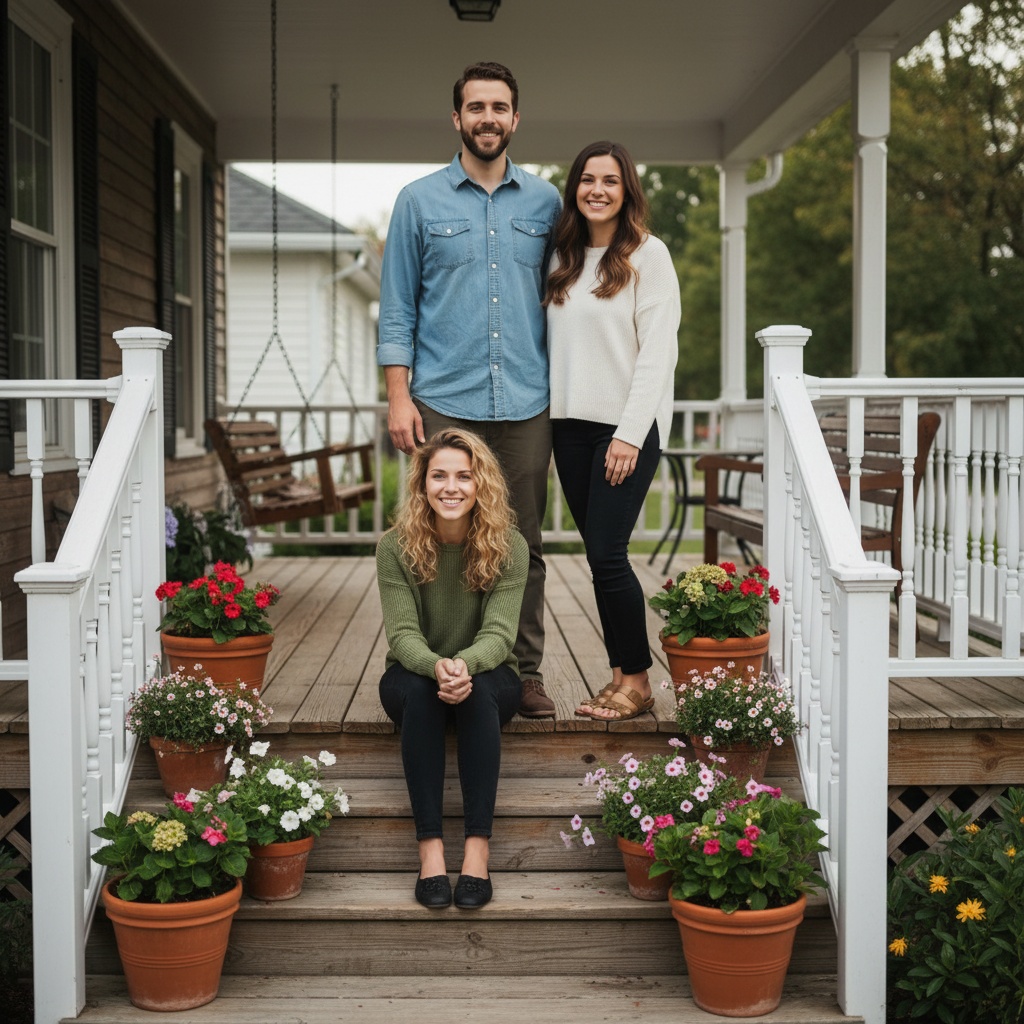
A practical guide for “AI family photo generator from individual photos”
The five-minute answer
How to create an AI family photo from individual pictures
- Add the family portraits.Choose one clear, recent head-and-shoulders photo for each of two to five family members.
- Choose a shared scene.Pick a porch, living room, park, holiday, or studio setting that gives every person enough visual space.
- Generate and inspect.Create the new family composition, then check faces, hands, clothing, and meaningful details before sharing.
Family members in different places? Their source backgrounds do not need to match. TogetherLens uses the individual portraits to compose one new family scene.
A strong generated family portrait begins with recognizable source photos, not elaborate prompts. Use one clear image per person so the model can read facial structure without guessing through a crowded crop.
Choose a scene that already makes sense for your family—a porch, living room, park, or holiday table. Familiar settings usually feel more believable than dramatic fantasy backgrounds and leave more attention on the people.
Three scenes that fit this idea
Front porch
Relaxed daylight, gentle depth, and room to arrange several generations naturally.
Living room
A warm seated portrait works well when ages and heights vary widely.
Park picnic
Useful for casual clothes, children, and an intentionally candid feeling.
Choose source photos the model can read
TogetherLens creates a new composition from the people you provide. It does not need matching backgrounds, but it does need clear facial information. Start with the original file when possible rather than a screenshot downloaded from a social network or messaging app.
- Use one head-and-shoulders portrait per person.
- Pick images taken near eye level with soft, even light.
- For children, choose a recent image with an unobstructed face.
- Keep each face fully visible and ask every living person for permission.
Generate in three deliberate steps
- Add two to five people.Use one clear portrait for each person and review every crop before continuing.
- Choose one or two vibes.Pick a scene that supports the story instead of competing with the faces.
- Inspect the preview.Check eyes, teeth, hands, clothing, jewelry, and meaningful background details. Trial previews are protected with a watermark.
What to avoid
- Tiny faces cropped from an existing group
- Mixed heavy filters
- Hands or hair covering the eyes
Generated photos are creative images, not documentary evidence. Disclose that the result is AI-generated when context matters, and never use someone’s face to impersonate, embarrass, or mislead.
Questions about this portrait
How do I create an AI family photo from individual pictures?
Open TogetherLens on iPhone or Android, choose one clear portrait for each of two to five family members, pick a shared scene, then generate and inspect the new family photo.
Can AI create one family photo when relatives live in different places?
Yes. The source backgrounds do not need to match because TogetherLens composes a new scene around the selected family portraits.
Is the AI family photo generator free?
TogetherLens is free to install. Eligible new users can try one protected preview before choosing Premium for full-quality results and more scenes.
How many family members can I add?
TogetherLens supports two to five people in one generation.
Can the source photos come from different years?
Yes, but recent photos with similar image quality tend to produce a more coherent result.