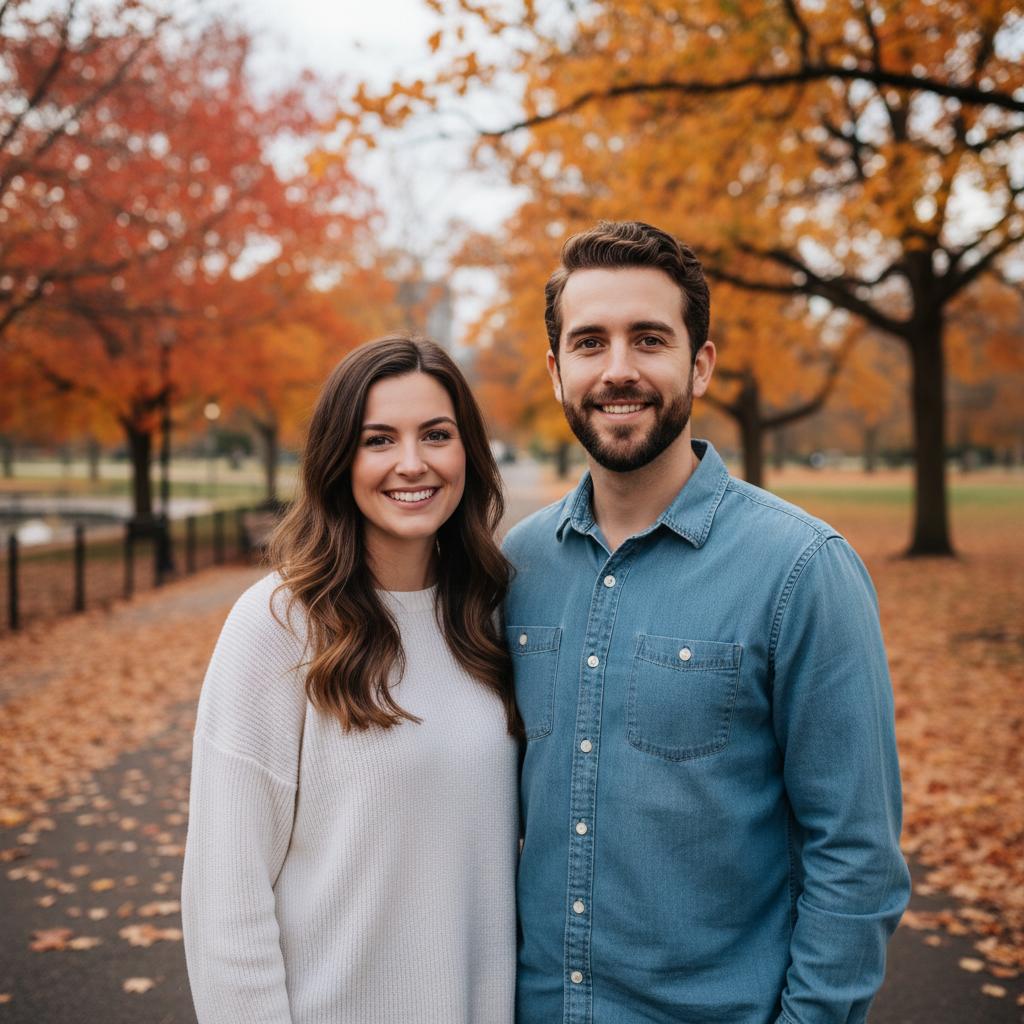
A practical guide for “add a deceased loved one to a photo with AI”
To create the tribute, add one clear portrait of the person remembered and one portrait for each living family member who should appear. TogetherLens composes a new group image rather than altering an existing historical photograph or pasting a face over another body.
Speak with close relatives before generating or sharing an image of someone who has died. Grief is personal; what comforts one family member may feel unsettling to another.
Choose a calm, timeless scene and a source image that reflects how the person is remembered. Clearly describe the result as an AI-generated tribute so it is never confused with a real historical photograph.
Three scenes that fit this idea
Quiet garden
Soft greenery and even light keep attention on expression and connection.
Family porch
A familiar domestic setting can feel grounded rather than theatrical.
Simple studio
A neutral background avoids inventing a specific event or memory.
Choose source photos the model can read
TogetherLens creates a new composition from the people you provide. It does not need matching backgrounds, but it does need clear facial information. Start with the original file when possible rather than a screenshot downloaded from a social network or messaging app.
- Use the clearest available portrait of the person remembered.
- Agree on age, clothing, and tone before generating.
- Save source provenance with the finished tribute.
- Keep each face fully visible and ask every living person for permission.
Generate in three deliberate steps
- Add two to five people.Use one clear portrait for each person and review every crop before continuing.
- Choose one or two vibes.Pick a scene that supports the story instead of competing with the faces.
- Inspect the preview.Check eyes, teeth, hands, clothing, jewelry, and meaningful background details. Trial previews are protected with a watermark.
What to avoid
- Surprising close family members
- Dramatic fantasy scenes unless explicitly wanted
- Removing the AI-generated disclosure
Generated photos are creative images, not documentary evidence. Disclose that the result is AI-generated when context matters, and never use someone’s face to impersonate, embarrass, or mislead.
Questions about this portrait
How do I add a deceased loved one to a photo with AI?
With TogetherLens, add a clear portrait of the person remembered and portraits of the family members who should join them, then choose a calm scene. The app creates a new composition; label it as an AI-generated tribute.
Can TogetherLens edit an existing family photograph?
No. TogetherLens creates a new group composition from separate portraits and does not alter the historical original.
Is it appropriate to create a memorial portrait?
That depends on the people affected. Ask close family members first and respect anyone who is uncomfortable.
How should I share it?
Label it as an AI-generated tribute and share privately before posting publicly.